
 By Åsne Holtklimpen
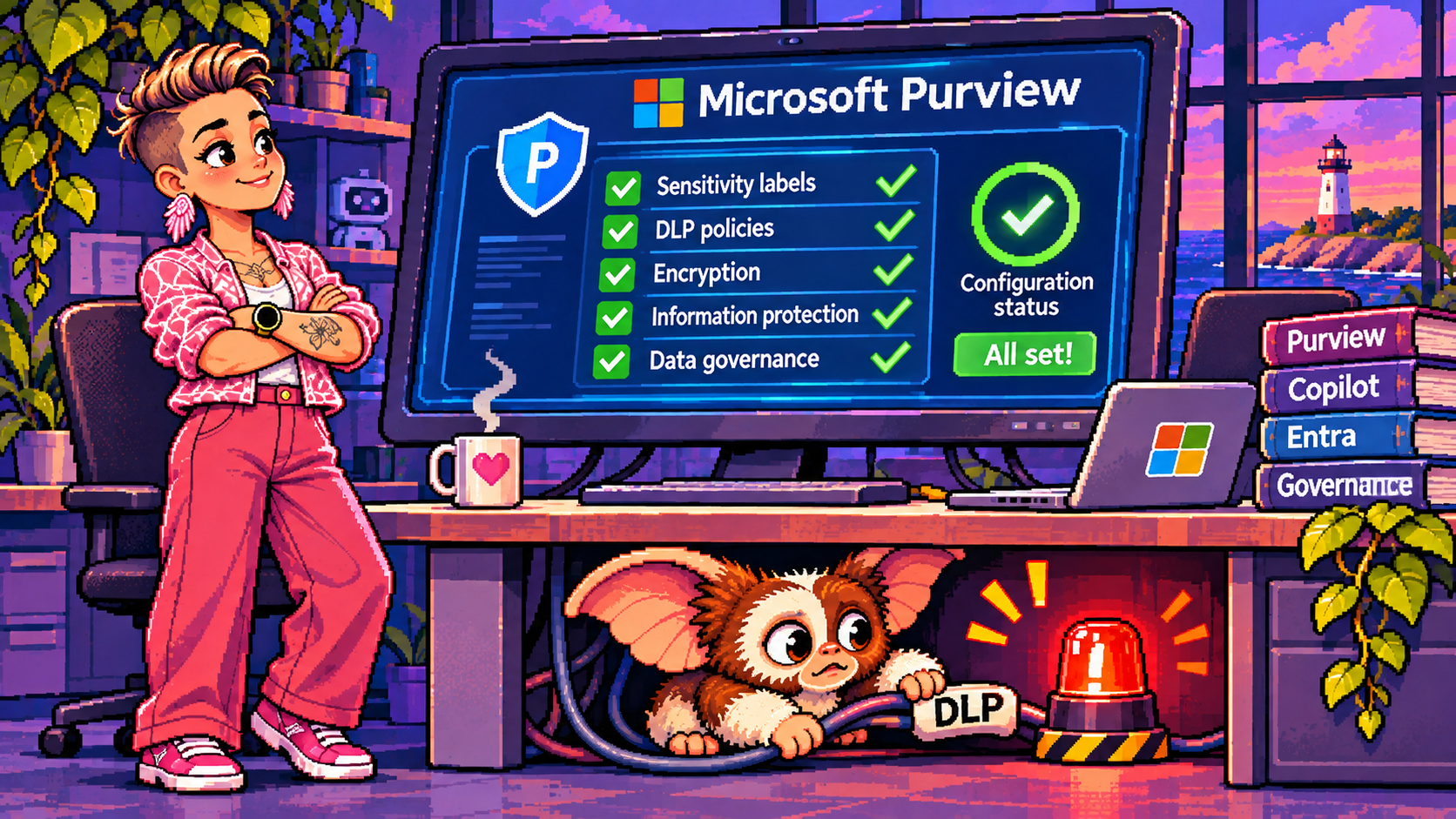
I wrote an article about getting Microsoft Purview to work, and that wasn’t controversial enough. Then I mentioned default sensitivity labels, which seemed to spark a few opinions.
And I rather enjoyed the discussion. Not because everyone agreed with me, because they certainly didn’t, but because it highlighted something I’ve been thinking about for a while. We spend an enormous amount of time configuring information protection, but considerably less time proving that it actually works.
After publishing You found Microsoft Purview. Congratulations. Now make it work, I had some excellent discussions about default labels, automatic classification, encryption, co-authoring and Copilot. Someone also pointed out the awkward fact that not all Microsoft applications support the same protection capabilities.
All valid points, and they brought us back to a question I think every organisation should be asking: Can you demonstrate that your information protection actually does what you think it does?
I’ve already written quite a bit about sensitivity labels. In Labels are just stickers until you do this, I covered enforcement, automation and governance. Then came When the stickers start to peel, where I looked at what happens when those controls meet actual users and business processes. And in Stickers, peeled, then auto-applied, I explored how SharePoint library defaults and automatic labelling change the picture.
So I’m not going to explain how to design a label taxonomy again. We’ve done that. Several times, actually.
This time, I want to look at what happens after you’ve configured everything. Because a sensitivity label, an encryption setting or a DLP policy might look perfectly sensible in the admin centre, but that doesn’t tell us how it behaves when someone opens an Excel workbook, collaborates with an external partner or asks Copilot a question.
And that’s where things get interesting.
Your label says Confidential. What happens next?
Let’s assume you’ve followed the previous articles. Your labels have meaningful names, your policies are published and you’ve configured the protection appropriate for your organisation.
Now take a document labelled Confidential and try to use it.
Can you share it externally? Can the recipient open it? Can someone copy the content into another application? Does DLP detect an attempt to upload it to an unapproved service? And what happens when Copilot tries to retrieve the information?
These aren’t questions you can answer simply by looking at the label name. The results depend on the actual protection configuration, the user’s permissions, the application and the additional policies involved.
This is where I see organisations making assumptions. Someone has configured encryption, so they assume the information is protected everywhere. Someone else has created a DLP policy, so they assume sensitive information cannot leave the organisation. Meanwhile, nobody has actually tested the scenarios that matter.
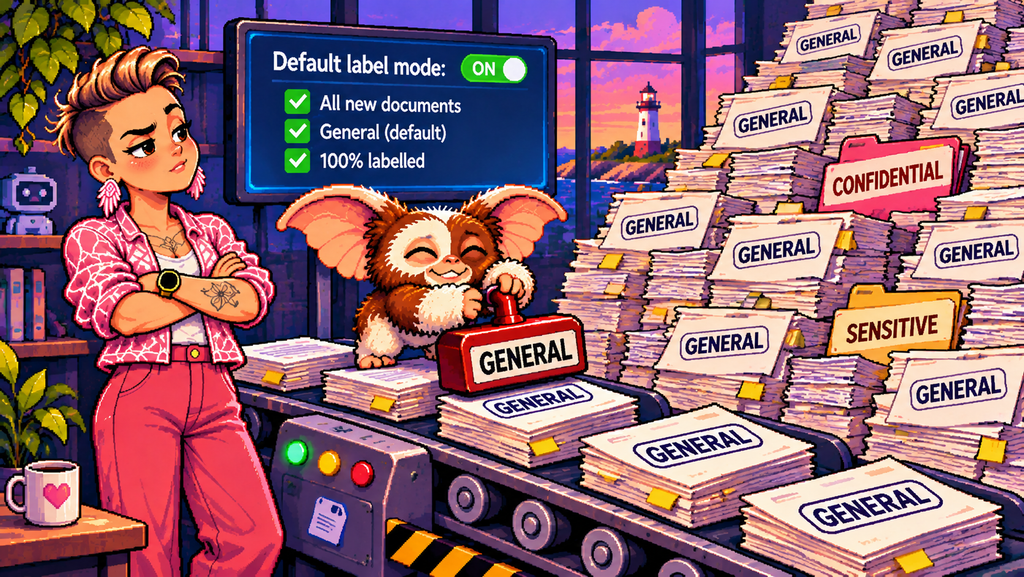
And this brings me back to my argument against default sensitivity labels. If you automatically apply General or Internal to every new document, that’s probably where most of them will stay. Users see that a label has already been applied and rarely question whether it’s the correct one. You might end up with 100% of your documents labelled, but that doesn’t mean you have an accurate picture of your organisation’s information. How much of it is actually confidential? Where is your sensitive information stored? And how much of it has been sitting under a General label for years?
I’ve covered default labels in my previous articles, including where they make sense for specific SharePoint libraries and business processes. But applying General or Internal as a blanket default across the organisation doesn’t help you understand your data. It gives you a lovely classification report where everything looks perfectly organised, without necessarily telling you anything useful about what you’re protecting.
And I don’t think this is necessarily because people don’t care. Purview is a large platform with plenty of configuration options, dependencies and limitations. It’s easy to spend so much time getting everything configured that testing becomes something we’ll get around to later.
Unfortunately, later has a habit of arriving after something goes wrong.
Encryption meets the Finance department
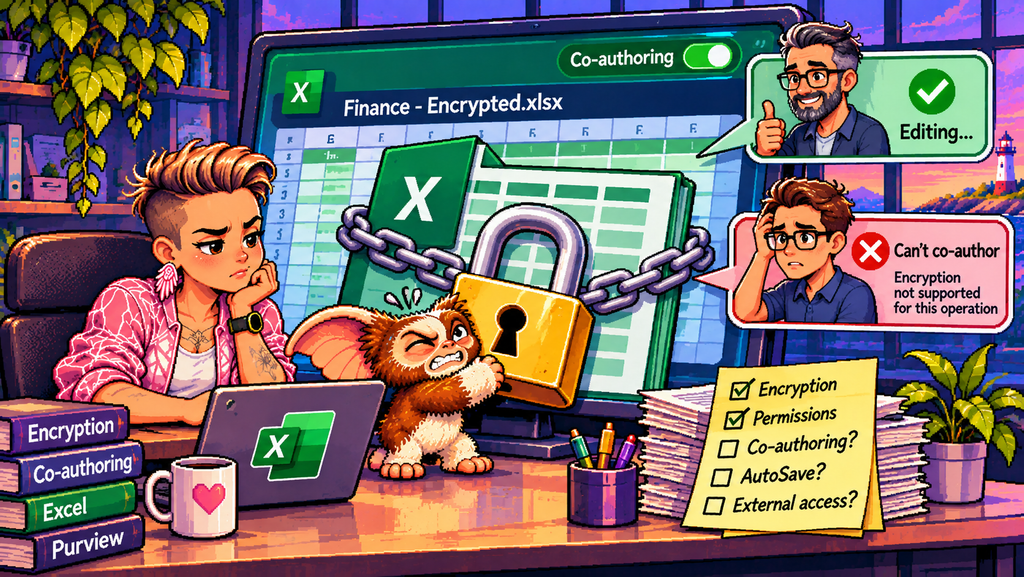
One of the comments raised a scenario that deserves more attention: encrypted Excel workbooks and co-authoring.
Imagine a pilot where everything works perfectly. A handful of users, a few documents and a sensitivity label that applies encryption exactly as intended. Everyone is happy, the testing is signed off and the rollout begins.
Then Finance gets involved.
Suddenly, we’re dealing with workbooks containing several worksheets, complicated formulas, data connections and multiple people working on the same file. Some users work in Excel for the web, others use the desktop application and occasionally an external auditor needs access.
Microsoft supports co-authoring for documents encrypted with sensitivity labels, provided the necessary prerequisites are met. However, not every encryption configuration supports the same functionality. Double Key Encryption and configurations where content access expires are examples of scenarios where co-authoring and AutoSave aren’t supported.
And that’s before we start looking at particular Excel features, client versions and external collaboration requirements.
This is why I recommend testing encryption against actual business processes rather than simply checking whether an authorised user can open an encrypted document.
Take a representative Finance workbook containing synthetic information and apply the label you intend to use. Have two authorised users edit it simultaneously and check whether AutoSave works. Test any relevant data connections, open the workbook in Excel for the web and verify that an external collaborator can access it when permitted. Then repeat the access test with someone who shouldn’t be able to open the file.
If everything works as expected, excellent. You’ve demonstrated that your configuration supports the business process while enforcing the intended protection.
If it doesn’t, you’ve discovered something important before deploying the policy to thousands of users.
I’ve already covered the operational consequences of broken collaboration in When the stickers start to peel. The point here is to catch those problems before users start creating unprotected copies or finding alternative places to store their information.
Not every Microsoft application got the memo
Another interesting point from the discussion was that not every Microsoft application supports the same sensitivity labelling and encryption capabilities. Visio and Project were mentioned specifically.
And that’s worth paying attention to, because organisations store plenty of sensitive information in architecture diagrams, project plans and other files that aren’t Word documents.
We tend to talk about Microsoft 365 as though every application understands and enforces information protection in exactly the same way. In reality, support varies depending on the application, file format, platform, client version and protection mechanism.
A file retaining sensitivity label metadata doesn’t necessarily mean every application can enforce the protection we expect. Some applications may support opening protected content but not the editing or collaboration scenarios users depend on. Other formats require different protection methods altogether.
This is something I’d encourage organisations to include in their testing. Identify the file formats that matter to your business and verify how your protection behaves. If native sensitivity labelling or encryption isn’t supported for a particular workflow, establish which other controls protect that information.
SharePoint permissions, DLP and endpoint controls may help, depending on the scenario, but they don’t automatically provide equivalent protection.
This subject deserves an article of its own, particularly when we start looking at Visio, Project, PDFs and third-party applications. For now, my point is simple: don’t assume that because two applications come from Microsoft, they’ll behave identically.
That would be far too convenient.
Copilot doesn’t care what you intended
Now for the part I find particularly interesting.
We’ve spent years trying to convince organisations to manage SharePoint permissions, classify information properly and stop giving everyone access to everything. Then Copilot arrived, and suddenly people became very interested in what their users could access.
Funny how that works.
Microsoft 365 Copilot respects the permissions and supported information protection controls that apply to the content it processes. But it doesn’t decide whether those original permissions were sensible. If someone has access to information they shouldn’t have been given access to, that’s a governance problem, not a Copilot malfunction.
What makes Copilot particularly useful for testing is that we can demonstrate the differences between classification, encryption and DLP.
Three documents, three different tests
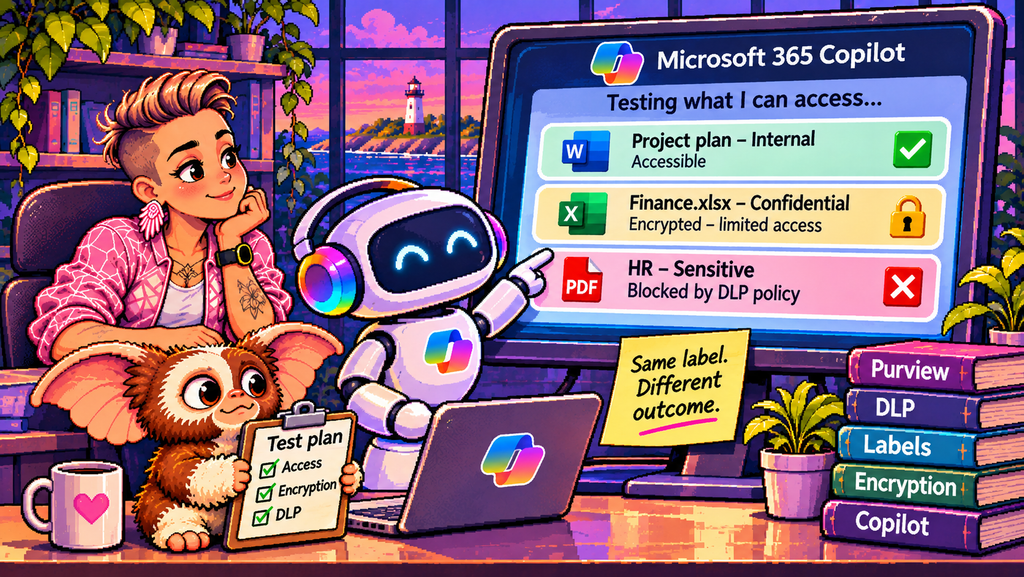
Create a small SharePoint test environment with synthetic information and a few test users. Use three documents with similar content, but different protection configurations.
Document A: Confidential without encryption
Apply a Confidential sensitivity label without encryption or a DLP restriction preventing Copilot processing. Give the test user access to the document and check whether Copilot can retrieve and summarise it.
If the content is supported, indexed and retrieved, Copilot may be able to use it. The Confidential label alone doesn’t automatically exclude information from Copilot.
Document B: Confidential with encryption
Apply a sensitivity label with encryption and configure permissions so one test user has both VIEW and EXTRACT rights, while another has VIEW without EXTRACT.
Test how Copilot behaves for both users. In supported scenarios, the user with the necessary rights may be able to summarise the content, while the user without EXTRACT should not receive a content summary. A link to the document may still be returned.
Document C: Confidential with DLP restrictions
Configure a Microsoft Purview DLP policy using the Microsoft 365 Copilot and Copilot Chat location, with a sensitivity label condition and the action to restrict Copilot from processing the content. Use a test user who would otherwise have access to the document and verify that Copilot doesn’t use the protected content when generating its response. The document may still appear as a reference or link.
Make sure you’re testing a supported Copilot experience, that the policy is in enforcement mode and that the content is within the scope of the configured restriction. Otherwise, you might end up blaming Copilot for a policy that was never going to apply in the first place.
These three scenarios illustrate why classification, encryption and DLP shouldn’t be treated as interchangeable controls.
There’s also an important testing detail that people sometimes overlook. A document not appearing in a Copilot response doesn’t automatically mean your security policy blocked it.
Copilot retrieval depends on indexing, permissions, context and the particular experience being used. If the document wasn’t retrieved in the first place, you haven’t necessarily proven anything about the protection.
That’s why I’d recommend verifying the underlying access conditions, repeating the scenarios and checking the relevant policy and audit evidence. Otherwise, you’re testing whether Copilot happened to find a document, not whether your security controls worked.
Stop admiring your policies, start testing them.
One of the comments on my previous article compared Purview with other security technologies, and I thought it was a very good comparison. We’ve all seen environments where MFA is technically enabled but important gaps remain, backups are configured but nobody has tested a restore, or security monitoring generates alerts that nobody reviews.
Purview is no different. A policy being configured and enabled doesn’t prove that it protects the information you intended it to protect.
And even if everything worked perfectly six months ago, that doesn’t guarantee it still behaves the same way today. Applications change, permissions change, policies are modified and new business processes appear. And then there’s Microsoft, regularly introducing new features, changing existing ones and renaming things just to keep us entertained.
So rather than introducing another enormous governance exercise, I’d recommend maintaining a small collection of repeatable information protection tests. Focus on the scenarios that matter most to your organisation and make sure you can demonstrate the expected behaviour.
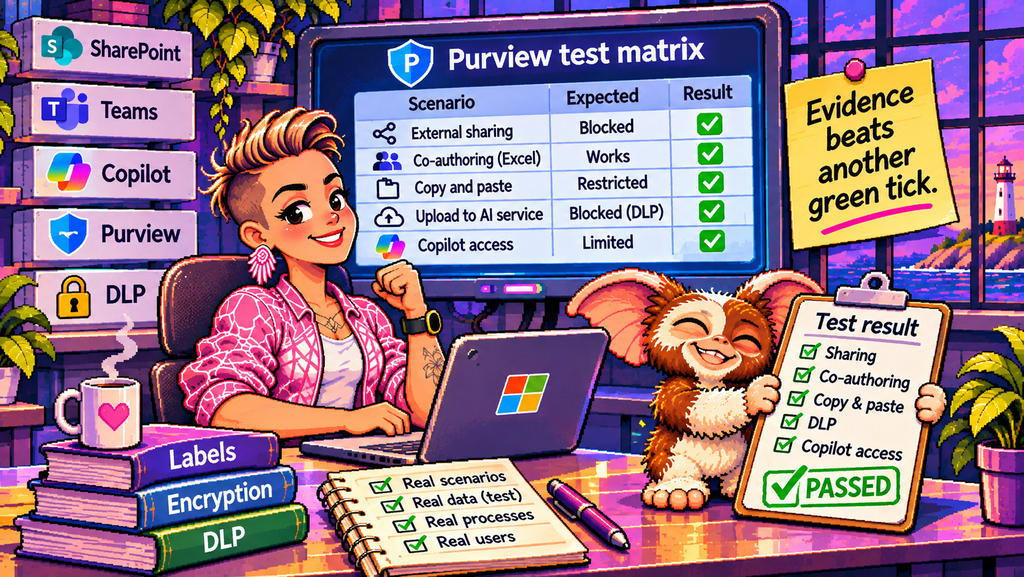
A practical Purview test matrix
| Scenario | What you should verify |
|---|---|
| Classification | The correct label is applied and its actual protection is understood |
| Encryption | Authorised users can access content while unauthorised users cannot |
| Co-authoring | Collaboration and AutoSave work with the chosen encryption configuration |
| External sharing | Sharing and file access follow the intended restrictions |
| DLP | Sensitive information triggers the expected audit, warning or blocking behaviour |
| Application support | Important file formats and business applications behave as expected |
| Copilot permissions | Copilot doesn’t disclose content the user cannot access |
| Copilot encryption | Content processing respects the applicable encryption rights |
| Copilot DLP | Matching content is restricted from Copilot processing when the policy applies |
| Regression testing | Protection continues to work after configuration or application changes |
I’ve also created a downloadable Excel test matrix that you can use as a starting point. It provides space to document the configuration, expected results, actual results and supporting evidence.
The expected behaviour will depend on your environment, licensing and supported capabilities. That’s why it’s important to define what should happen before running a test, rather than deciding afterwards that whatever happened must have been correct.
And when something doesn’t work, investigate why. Perhaps the policy wasn’t scoped correctly, the application doesn’t support the expected behaviour, the content wasn’t indexed or the DLP policy is still in simulation mode.
Occasionally, of course, the technology itself might be the problem. And remember that Purview features will take time to show results. Some changes can take time to propagate, sometimes 72 hours, so allow for the documented processing and policy propagation times before drawing conclusions
Make testing part of normal operations
The initial rollout shouldn’t be the last time you validate your information protection. When a sensitivity label changes, check the workflows that depend on it. When a DLP policy is modified, verify that the intended activities are still detected or restricted. And when new Copilot capabilities are introduced, review how they interact with your existing protection design.
This doesn’t need to become a massive operational burden. A handful of well-designed tests, repeated when relevant changes occur, will provide considerably more confidence than another dashboard showing that all your policies are enabled.
It also changes the conversation with the business. Instead of explaining that you’ve configured a collection of security controls, you can demonstrate what happens when someone tries to access, share or process protected information.
That’s a much more useful result.
So, does your information protection actually work?
So, does your information protection actually work?
I’ve written quite a few articles about getting sensitivity labels right, and I still believe they’re an important part of information protection. But configuring labels and publishing policies is not the same as proving that your information is protected.
We need to understand what happens when people collaborate, share information externally, use different applications and ask Copilot to work with their data. We also need to know where the limitations are, because those don’t disappear simply because nobody has documented them.
And please, don’t measure the success of your information protection solely by how many documents have a sensitivity label. Particularly if you’ve applied General or Internal to everything and called it a day.
Measure whether the right information is protected, whether your restrictions actually work and whether people can still get their jobs done without finding creative ways around your security controls.
So open that Confidential document. Share it, try accessing it as someone else, work with it in Excel and ask Copilot about it. Check whether the results match what you intended when you configured the controls.
You might be pleasantly surprised. Or you might discover your next project…
Either way, that’s considerably more useful than another green tick in the admin centre.
Author

Discover more from Agder in the cloud
Subscribe to get the latest posts sent to your email.
 Sandra Saluti